Operating Systems
Break Ubuntu Password
Guide to resetting Ubuntu user passwords from recovery mode
Boot up the machine and, after the BIOS screen, hold down the left Shift key (for UEFI systems you might need to press Esc instead). You should then see the GRUB boot menu.
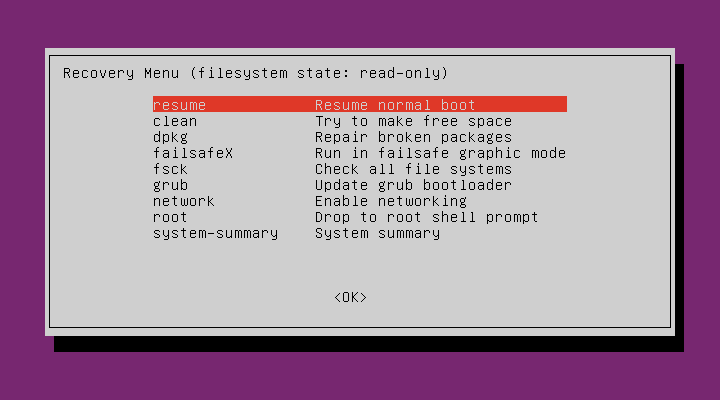
Press the down arrow until you select the second entry from the top (the one with recovery mode in the description) and press Enter.
Using the arrow keys, select root and press Enter.
You should now see a root prompt, something like this:
root@ubuntu:~#At this stage, the file system is read-only. Remount it with write permissions:
mount -o remount,rw /Now set the user's password with the passwd command:
root@ubuntu:~# passwd
Enter new UNIX password:
Retype new UNIX password:
passwd: password updated successfully
root@ubuntu:~#
Enter the new password when prompted. Once updated successfully, reboot the machine and the user will be able to log in with the new password.